By Chris Chiaro · Updated
Choose the right import route first
An Excel workbook is not a QFX file: changing its filename extension will not convert it. If your bank already offers a QFX (Web Connect) download that works with Quicken, use that directly. When your source is an XLSX spreadsheet, Sheet2QFX for Mac provides configurable column mappings and local conversion.
You also have a CSV alternative. Quicken’s Mac CSV instructions require a prescribed layout and say CSV import creates a new account rather than linking transactions to an existing one. That route does not support investment transactions. This walkthrough covers XLSX-to-QFX conversion for bank transactions, not investment activity or Quicken Simplifi.
Check compatibility during the trial. Quicken’s Web Connect troubleshooting guidance says it does not support QFX files created by third-party conversion software. A converted file is not guaranteed to be accepted by every Quicken version or financial institution. Sheet2QFX has been tested with BBVA exports; test your own setup before buying.
You’ll need an XLSX bank export, macOS 14 or later, and Quicken Classic for Mac with QFX import available. Back up your Quicken data file before testing an import. Get the free trial.
Jump to a step
Open your bank export
Choose Open xlsx… and select your spreadsheet. Check that the selected header row contains your column labels. Start with a short date range from one account. Keep an untouched copy of the bank export and identify any opening balances, subtotals or summary rows so you can leave them out of the transaction export. If you have an older .xls workbook, save a copy as .xlsx in your spreadsheet app first; renaming the extension is not enough.
Map the columns
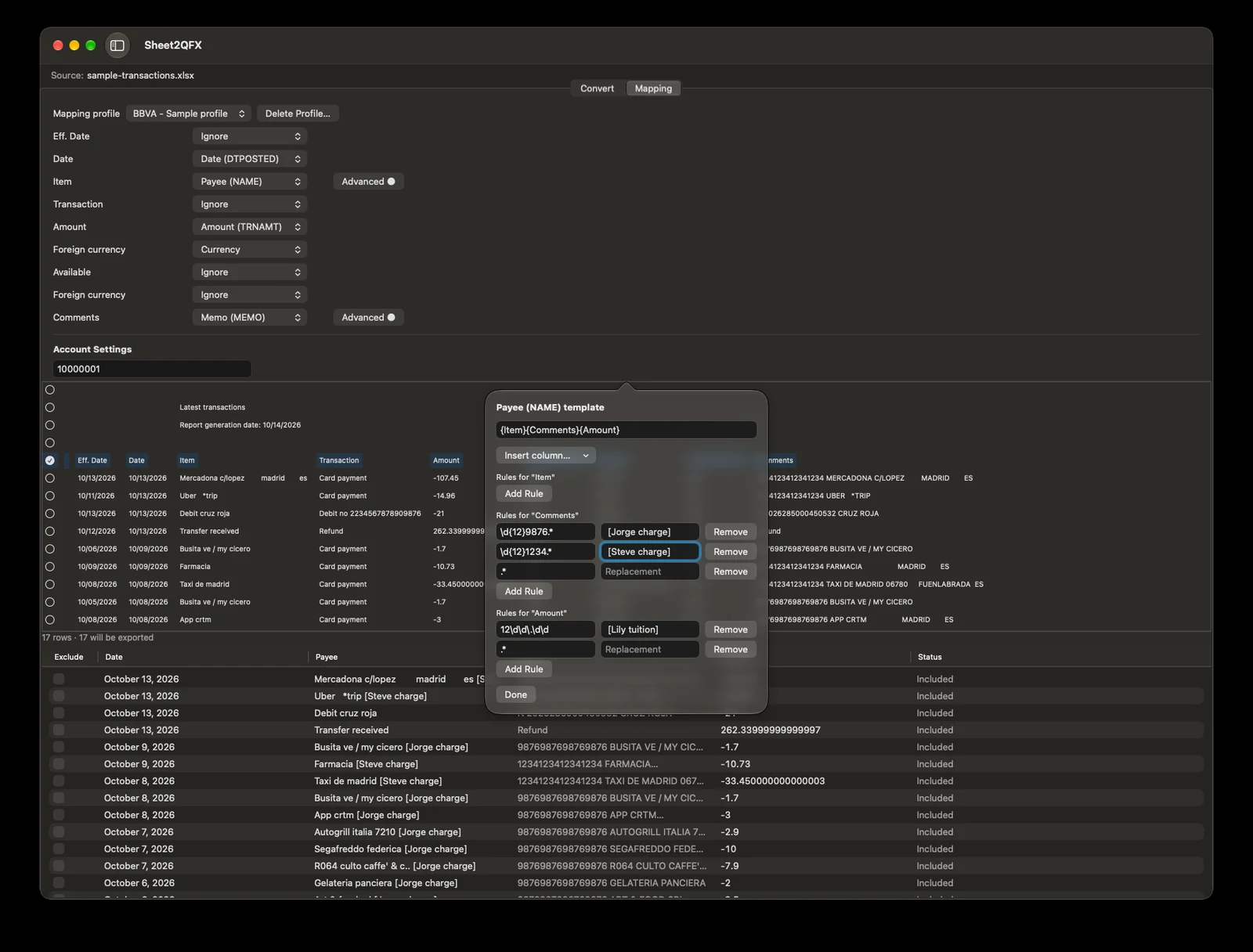
In Mapping, assign Date, Amount, Payee and Memo. Check the preview against the source: a date such as 03/04 can be ambiguous, and outgoing payments must have the correct sign. If your export has separate debit and credit columns, verify that the mapped amounts represent both correctly before continuing. Save a named profile to reuse next time.
Clean up descriptions
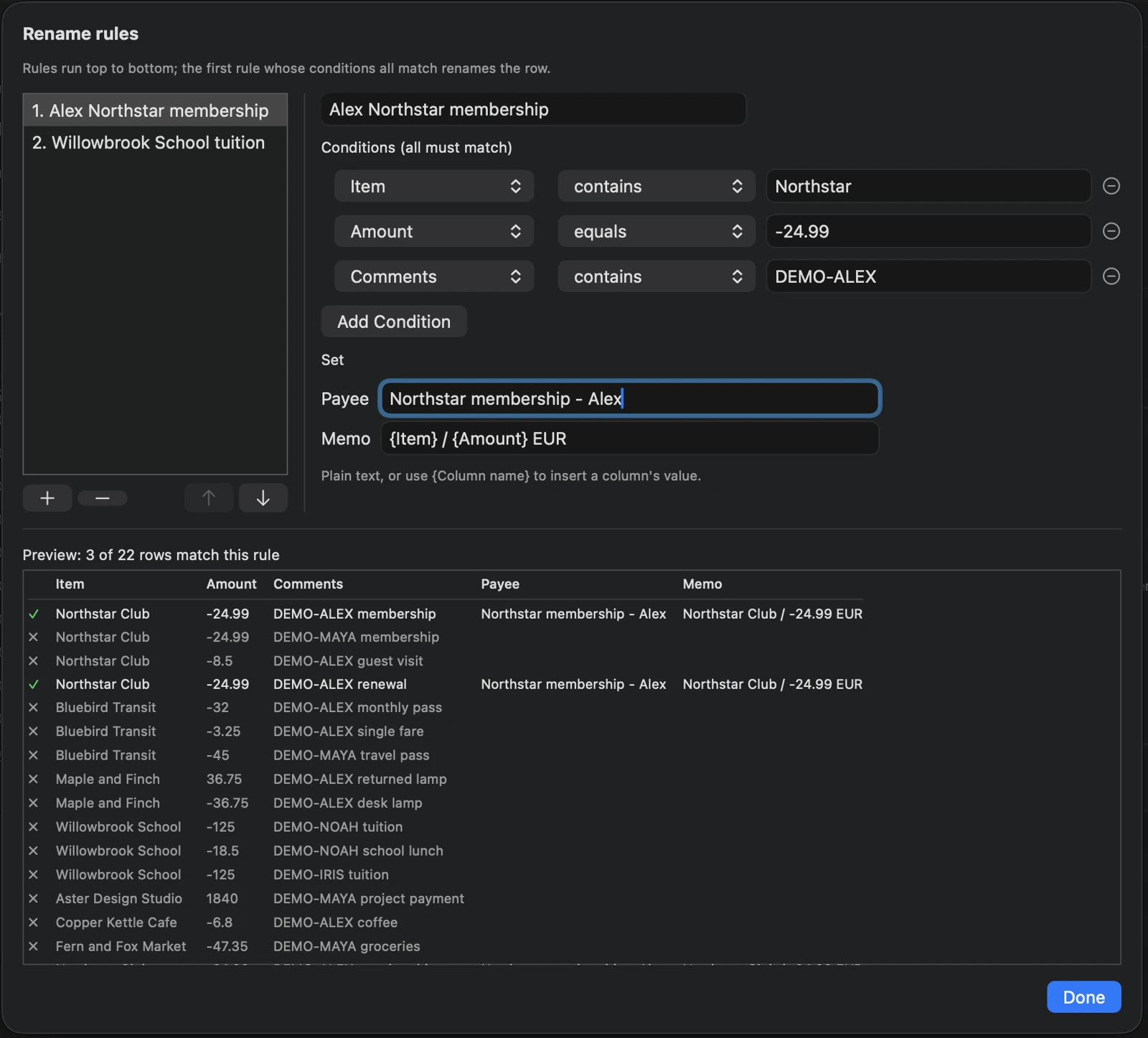
Optional: open Rename rules… on the Mapping tab. Match columns such as Item, Amount and Comments, then set Payee or Memo using text and {Column name} values. Combine columns into a clearer description and use regex replacements when you need pattern-based text cleanup. Preview matches before saving, checking both matching rows and rows that should remain unchanged.
Review before exporting
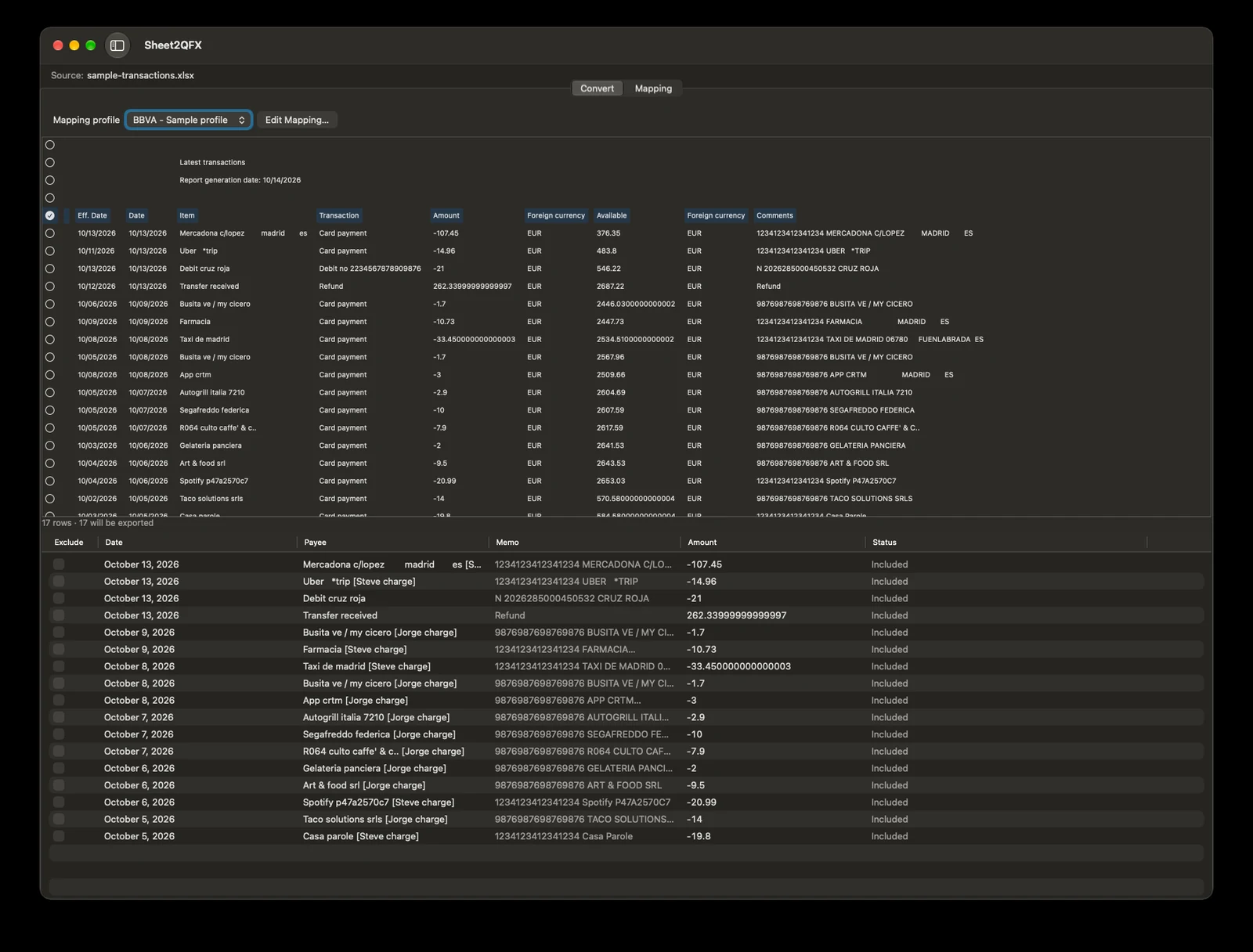
Confirm the bank ID, account ID, account type and currency for the account you intend to import, along with dates and amount signs. Use Exclude for summary rows and transactions you do not want to export. Compare several incoming and outgoing amounts with the original spreadsheet. Conversion runs locally on your Mac; your workbook is not uploaded to a converter.
Export, then import
Choose Export QFX… and save the file. With your Quicken backup ready, follow Quicken’s Mac QFX import instructions:
- Open Quicken and choose File → Import → Bank or Brokerage File (OFX, QFX).
- Select your QFX file and open it.
- In Choose Your Accounts, confirm the intended destination account before proceeding.
- Review the account register. Compare the included transaction count and totals with your source, and check payment signs, dates and any overlapping transactions.
For a recurring import, keep a record of the date range you imported. Avoid importing the same period through both a bank download and a converted spreadsheet without reviewing the overlap.
Need more detail?
Can I use a bank QFX or a CSV file instead?
If your bank supplies a QFX file that works in Quicken, use it directly. Quicken for Mac also accepts CSV in its required layout, creating a new account. See Quicken’s CSV instructions. Sheet2QFX converts XLSX only; it does not process PDFs or scanned statements.
What should I check in account settings?
Confirm the bank ID, account ID, account type and currency for your import setup. Start with a short date range you can easily verify. Sheet2QFX was tested with BBVA exports; other layouts have not been tested as widely, and acceptance by Quicken is not guaranteed.
How do I avoid duplicate imports?
Sheet2QFX includes duplicate-prevention features, but they do not guarantee that every overlap will be detected. Keep your mappings consistent and prefer non-overlapping date ranges where practical. Check for transactions already in your register and review the result in Quicken. Two legitimate transactions can share a date and amount; do not remove one on that basis alone.
How do rename rules choose which rows to change?
All conditions in a rule must match. Rules run from top to bottom, and the first matching rule sets Payee and/or Memo. Leave a template blank to keep that field unchanged. You can also use column combinations and regex cleanup in the underlying field mappings.
What if Quicken won’t import the file?
Check your header row, mappings and account settings, then try a small export. Quicken’s import guidance explains its QFX requirements; Quicken does not support third-party-converted files. For conversion help, contact kubuzz support with your app version and error message. Keep bank statements and account details out of your initial message.
Try Excel-to-QFX conversion on your Mac.
14 days free, with no account or card. Then a $4.99 one-time v1.x license, plus applicable tax, including v1.x fixes. Version 2.x is a separate purchase.